GST login on the official GST portal (www.gst.gov.in) allows taxpayers to manage all GST-related tasks such as filing returns, claiming refunds, replying to notices, and cancelling registrations — all online. With your GST credentials, you can access compliance services, communicate with GST officers, and avoid visiting CBIC offices physically.
This guide explains how to use the GST login portal, the services available before and after logging in, and the complete step-by-step process for registering and logging in successfully.
What Is GST Login?
The GST portal is the government’s unified online platform for Goods and Services Tax compliance across India. Hosted at gst.gov.in, the portal enables taxpayers to perform tasks such as:
- GST registration
- Return filing
- Tax payment
- Refund applications
- Communication with GST officers
All aspects of GST compliance can be managed digitally through this platform.
Overview of the GST Portal
| Portal Name | Goods and Services Tax (GST) Portal |
| Official Website | https://www.gst.gov.in/ |
| Managed By | Goods and Services Tax Network (GSTN) |
| Supervising Authority | Central Board of Indirect Taxes and Customs (CBIC) |
| Purpose of Portal | To enable taxpayers to perform GST-related activities such as registration, return filing, tax payment, refund claims, and compliance management. |
| Key Users | Taxpayers, GST Practitioners, Tax Officers, and Businesses registered under GST. |
| Main Services Available | Registration, Returns, GST Payments, Refunds, e-Way Bill, e-Invoicing, Taxpayer Search, and Helpdesk Support. |
| Helpdesk Phone Number | 1800-103-4786 (Toll-Free) |
| Languages Available | English and multiple regional Indian languages |
GST Registration: Step-by-Step Procedure
Step 1: Visit the official GST portal.
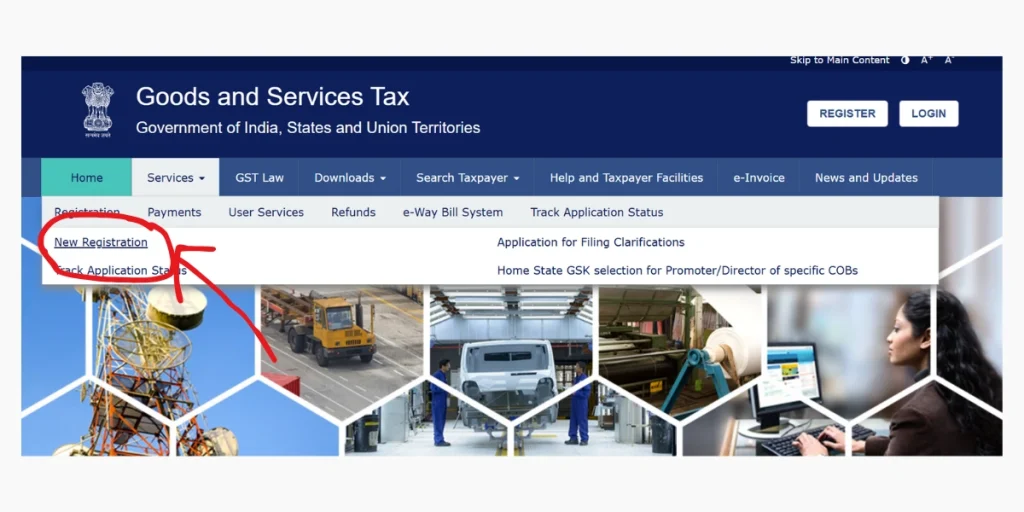
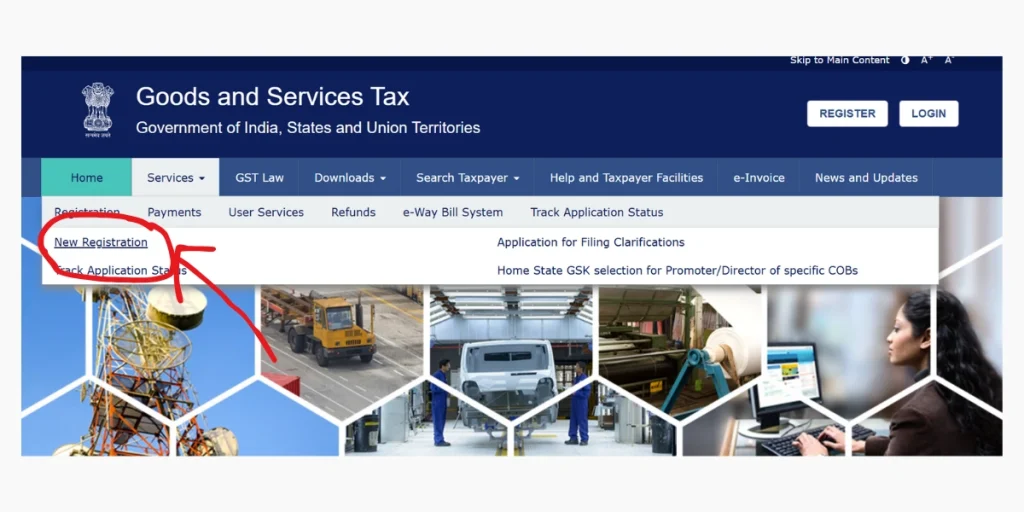
Step 2: Click on ‘Services’ → ‘Registration’ → ‘New Registration’
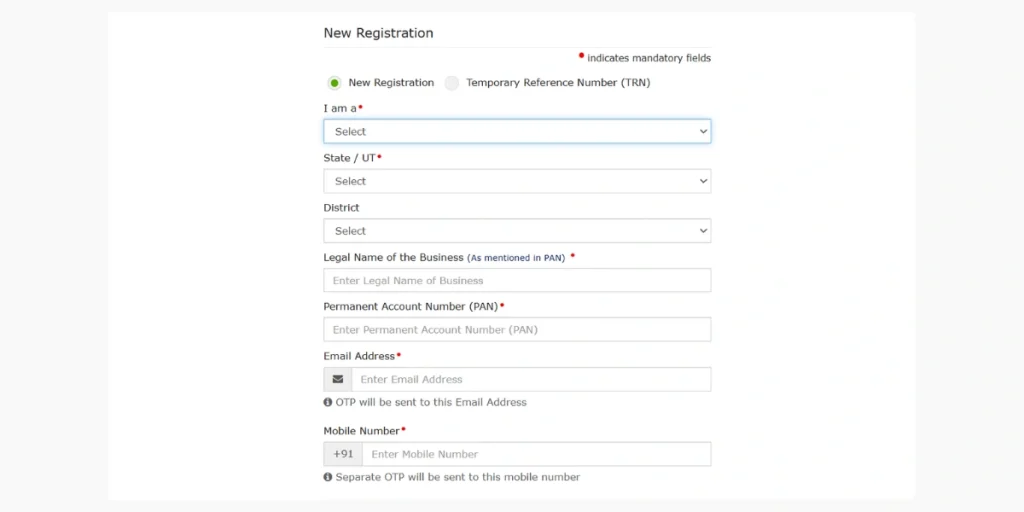
Step 3: Choose ‘Taxpayer’ as the user type and enter the following details:
- State/UT and District
- Legal Name of Business (as per PAN)
- PAN of the business or proprietor
- Email ID and Mobile Number for OTP verification
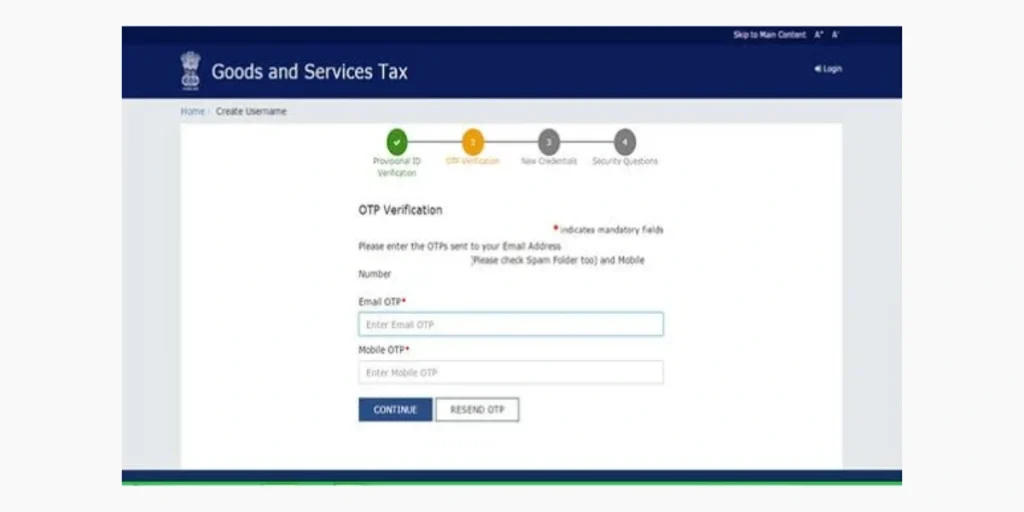
Step 4: Enter the OTP received on your email and mobile to verify
Step 5: A Temporary Reference Number (TRN) will be generated — note it down
Step 6: Return to the registration page and select ‘Temporary Reference Number (TRN)’ to log in
Step 7: Enter your TRN and verify it with an OTP again
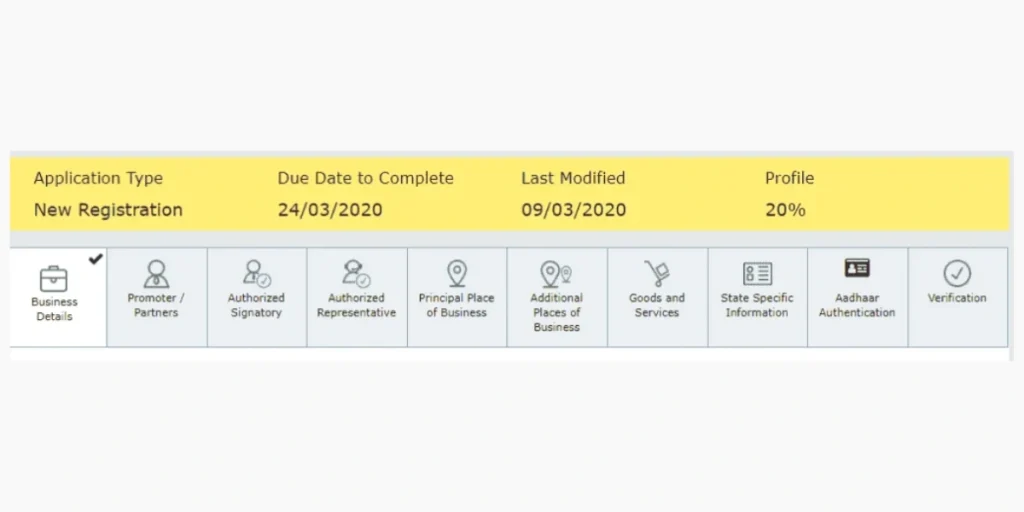
Step 8: Then fill out Part B of the registration form (GST REG-01) with:
- Business and promoter details
- Place of business information
- Bank account details
- Authorised signatory details
- Goods and services information (HSN/SAC codes)
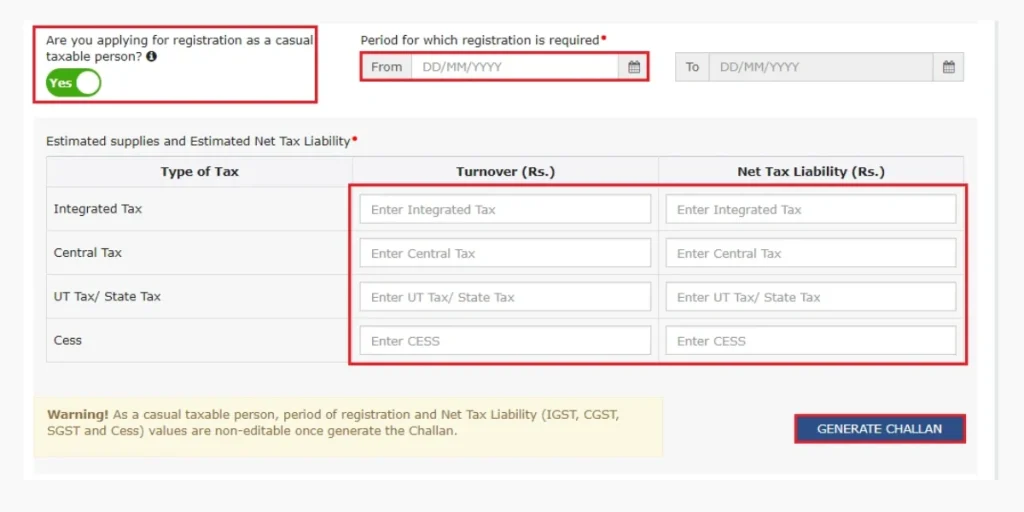
Step 9: Now, upload the necessary supporting documents:
- PAN card
- Proof of business registration (Incorporation Certificate/Deed)
- Address proof (Electricity Bill/Rent Agreement)
- Bank statement or cancelled cheque
- Photo and ID of authorised signatory
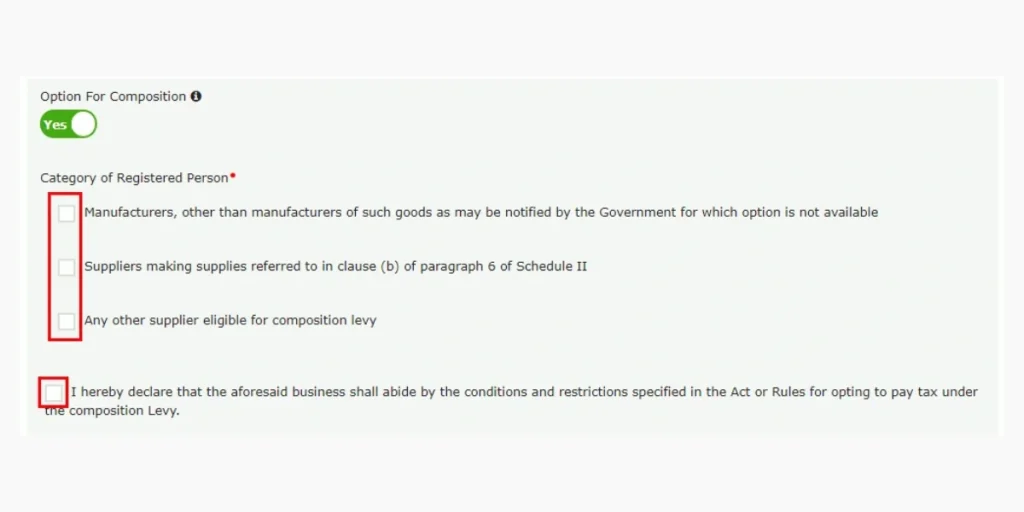
Step 10: Then, verify the application using one of the following:
- Digital Signature Certificate (DSC)
- Electronic Verification Code (EVC)
- e-Sign (Aadhaar OTP)
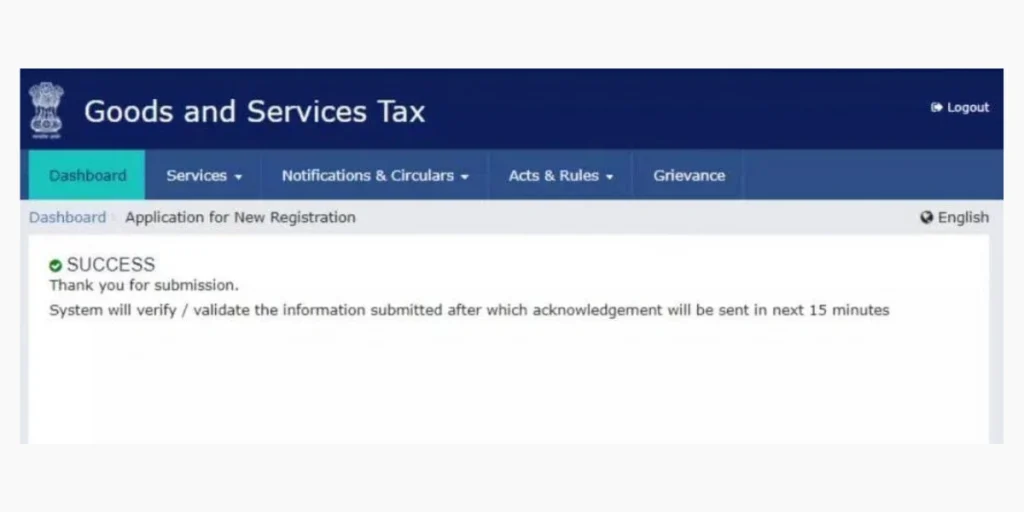
Step 11: Submit the application to generate an Application Reference Number (ARN). Use the ARN to track your registration status on the GST portal. Once approved by the GST officer, you’ll receive your GSTIN and login credentials via email/SMS
GST Portal Login Procedure
GST Login For First-Time Users
- Go to the official GST website:
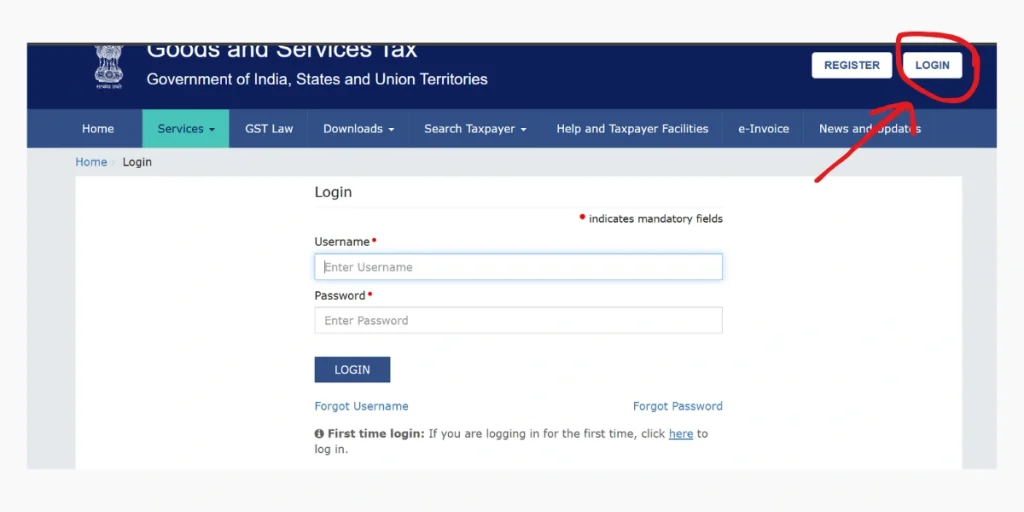
- Click on the “Login” button (top-right corner).
- Select “First-time login: If you are logging in for the first time, click here.”
- Enter your Provisional ID / GSTIN / UIN and the password received via email.
- Complete the captcha and click “Login.”
- Create a new Username and Password of your choice.
- Submit the new credentials and note the success message.
- You’ll be prompted to update your bank account details through a non-core amendment.
- Click “File Amendment” to finalise the setup.
For Existing Users
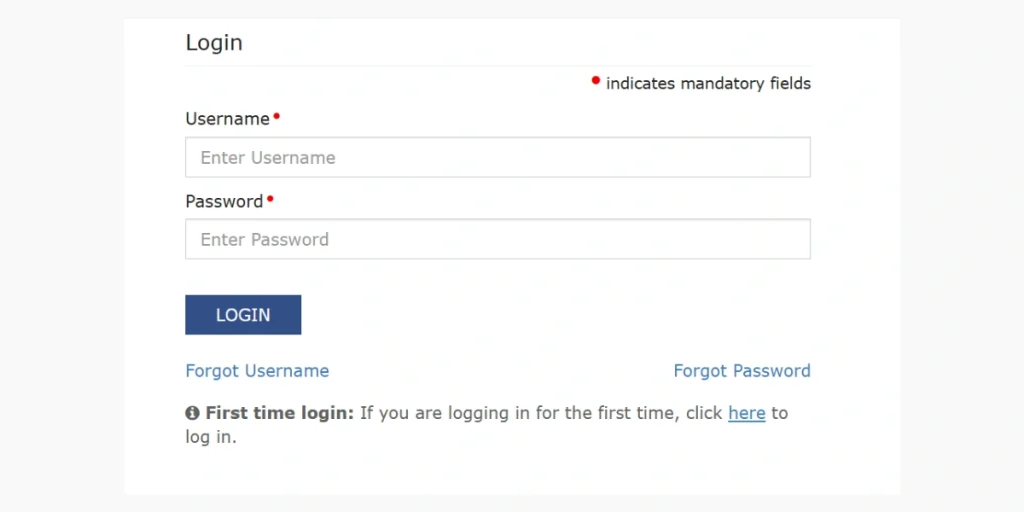
- Enter your Username, Password, and Captcha code.
- Click on “Login” to access your account.
- After login, you can:
- View your GST dashboard.
- File GST returns (GSTR-1, GSTR-3B, etc.).
- Pay taxes or create challans.
- View e-ledgers, notices, and orders.
- Check your Annual Aggregate Turnover (AATO).
How to File GST Return After Login?
- Go to the official GST portal:
- Click on the ‘Login’ button in the top-right corner and complete the login procedure.
- On the dashboard, click on the ‘Services’ tab
- Select ‘Returns’ → ‘Returns Dashboard’
- Choose the financial year and return filing period (month or quarter)
- Click on ‘Search’ to view the applicable return forms
- Select the type of return you want to file, such as:
- GSTR-1 – For outward supplies (sales)
- GSTR-3B – Summary return of sales and purchases with tax payment
- GSTR-9 – Annual return
- GSTR-9C – Reconciliation statement for taxpayers under audit
- Filing GSTR-3B (Example)
- Click on ‘Prepare Online’ under GSTR-3B
- Enter values for:
- Outward Supplies (Sales)
- Inward Supplies (Purchases)
- Eligible ITC (Input Tax Credit)
- Tax Liability
- Save the details entered
- Click on ‘Preview Draft GSTR-3B’ to verify data before submission
- Once verified, click on ‘Proceed to Payment’
- Pay the tax using one of the following:
- Electronic Cash Ledger
- Electronic Credit Ledger
- Net Banking / NEFT / RTGS
- Submit and File the Return
- After payment, click on ‘File Return’
- Select the authorised signatory from the dropdown
- File the return using one of these verification methods:
- Digital Signature Certificate (DSC)
- EVC (Electronic Verification Code) sent to registered email/mobile
- Once submitted successfully, an Acknowledgement Reference Number (ARN) is generated
How to Track GST Application Status Online
1. Check GST Application Status (For Pending Registration)
Follow these steps to check the current GST Status of your GST registration application:
- Visit the official GST website.
- Navigate to Services → Registration → Track Application Status
- From the Module dropdown, select Registration
- Enter your ARN (Application Reference Number) received after submitting your registration form
- Fill in the CAPTCHA code and click Search
- The system will display your application status, such as:
- Pending for Processing
- Pending for Clarification
- Approved
- Rejected
2. Check GSTIN Status (For Registered Businesses)
If your GST registration is already approved, you can verify your GSTIN details as follows:
- Go to the official website.
- Click on Search Taxpayer → Search by GSTIN/UIN
- Enter your 15-digit GSTIN
- Fill in the CAPTCHA and click Search
- The portal will display details such as:
- Legal name of the business
- Registration status (Active / Inactive)
- Date of registration
- Type of taxpayer/business
3. Search GSTIN by PAN
If you want to find all GST registrations linked to a PAN:
- Visit the Search Taxpayer section of the GST portal
- Click Search by PAN
- Enter your PAN number
- Complete the CAPTCHA and click Search
- The system will show a list of all GSTINs associated with that PAN
Steps to Use a GST Calculator
- Enter the original price of the product or service.
- Select the applicable GST rate (5%, 12%, 18%, 28%).
- Choose whether to calculate GST inclusive or exclusive.
- Click on the ‘Calculate’ button.
- View the GST amount, net amount, and total amount.
- Use the calculated values for billing, invoices, or accounting purposes.
GST Number Check
- To the GST No check. Visit the official GST portal
- Go to Search Taxpayer → Search by GSTIN/UIN
- Enter the 15-digit GSTIN
- Complete the CAPTCHA verification
- Click Search, and the portal will display the legal name of the business, GSTIN status (Active/Inactive), Type of taxpayer, Date of registration, State and jurisdiction.
New GST Rates List 2025
- 0% (Nil): Essentials like fresh milk, bread, and life-saving medicines.
- 5%: Processed foods, toiletries, fertilisers, and some agricultural machinery.
- 18%: Standard goods & services — electronics, cement, small cars, professional services.
- 40%: Luxury & sin goods — luxury cars, aerated drinks, pan masala, tobacco products.
FAQs on GST Portal Login and Services
GST Verification allows users to check the authenticity of any GSTIN on the portal. It confirms if a business is legally registered under GST.
Typically, a GSTIN is issued within 7–10 working days after successful submission and verification of documents by the GST officer.
You can update your GST registration online via Services → Registration → Amendments on the GST portal. Common amendments include business address, bank account, or authorised signatory changes.